WKH GUIDE · BIRD INTEL

Bird Intel,
step by step.

Bird Intel connects recent bird observations with birds, locations and hotspots. Start with a bird you want to find, or start with a place you already know, then move from sightings into deeper research and trip planning.

Bird observation and hotspot data: eBird, Cornell Lab of Ornithology. Geographic area search: OpenStreetMap contributors.

START HERE

Learn Bird Intel step by step

Watch the full tutorial first, then jump to the path that matches what you already know.

Watch the full tutorial This video gives you the full picture before you begin.
About 2 min

THE START SCREEN

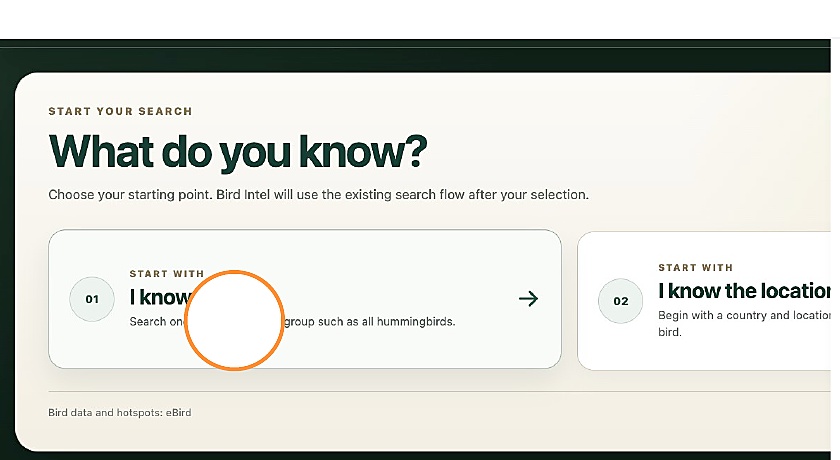
Bird Intel begins with one simple choice

Choose whether you are starting with a bird or with a location. The two buttons above take you directly to the matching step-by-step workflow.

Bird Intel start screen showing I know the bird and I know the location
The orange click marker in these screenshots shows the control used during the captured Bird Intel workflow.
01

PATH A

I know the bird

Use this path when you already have a target species, or when you want to search a whole bird group.

STEP 1

Choose a species or bird group

Type a bird name in Bird species or group. You can choose one species, for example Snowcap, or a broad group such as All Hummingbirds.

When a group helps: use a group when you want to discover several related species reported around the same location.
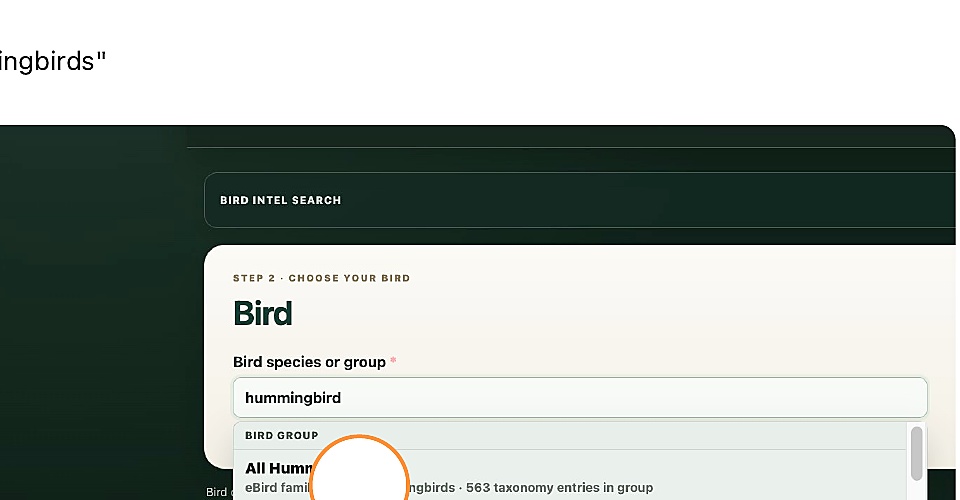
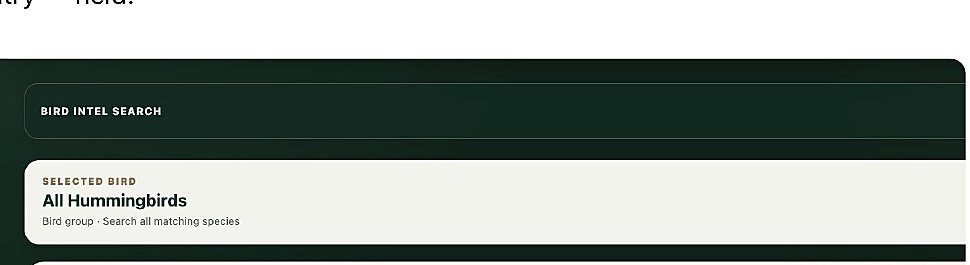
Bird Intel bird search with hummingbird entered and All Hummingbirds available
The captured example searches the All Hummingbirds group.
STEP 2

Set the search area and time period

Choose the radius, recent period and country. These settings control how far around the selected place Bird Intel searches and how recent the observations should be.

Radius: 0 km means only the exact selected eBird hotspot or location. A wider radius includes nearby observations.

Bird Intel location settings after All Hummingbirds has been selected
STEP 3

Find a location or hotspot

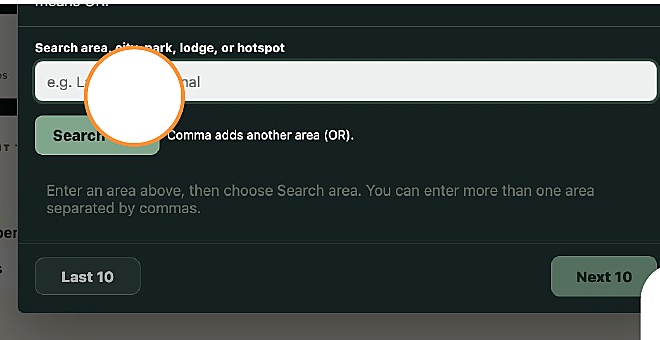
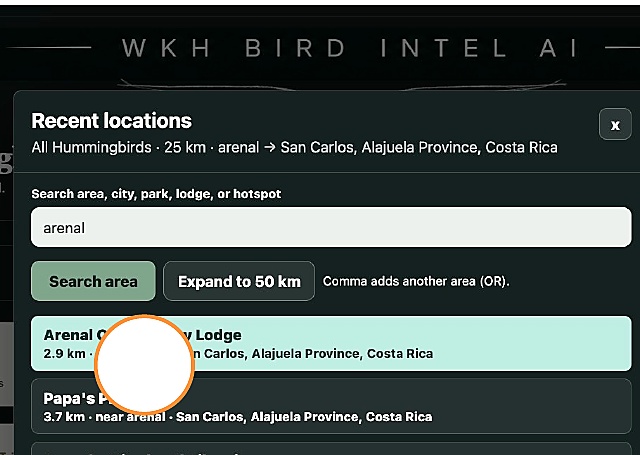
After choosing the country, select Find the location. Search a city, area, park, lodge or hotspot. In the captured example, the search area is Arenal.

Bird Intel Find the location control
1. Open Find the location.
Recent locations search box with Arenal search area
2. Enter an area and search.
STEP 4

Select the best matching place

Bird Intel resolves the area and lists nearby birding locations and hotspots. Review the distance and location name, then select the place that best matches your research.

The captured example selects Arenal Observatory Lodge.

Recent locations list around Arenal showing Arenal Observatory Lodge and other nearby locations
STEP 5

Review, then get sightings

Before the search runs, Bird Intel summarizes the choices you made. Check the bird or group, location, radius and recent period. If everything looks right, choose Get Sightings.

YOUR RESULTS

Use the sightings as a research hub

Once the search returns results, Bird Intel lets you move in several directions without starting over.

RECENT SIGHTINGS

Review the observation list

Each result can include the bird, date and time, count, location and whether the underlying eBird location is private.

Important: a recent sighting is useful research information. It is not a guarantee that the bird will still be present when you arrive.

Bird nameOpen Bird ProfileIdentification, habitat, behaviour, conservation and other bird information.
Location nameOpen Location ProfileUnderstand the place, location type, practical context and nearby accommodation where available.
Selected birdsAdd to TripMove useful target birds from research into your wildlife trip.
FILTER THE RESULTS

Narrow a long sightings list

Use the result filters when a search returns many observations.

FILTER BIRDChoose a bird
FILTER LOCATIONChoose a location
FILTER PRIVATEAll · No · Yes

GO DEEPER

Research the bird. Understand the place.

Bird Intel connects sightings to focused information pages, so a result can become useful trip research.

BIRD PROFILE

Learn more about the species

Open a bird name from the results to see its Bird Profile. The profile can include a photo, overview, conservation status and detailed topics such as Migration, Breeding, Diet & Feeding, Behavior, Identification, Range & Habitat, Classification and Conservation.

A bird can also be moved toward Trip Planner when it becomes a target for your journey.

LOCATION PROFILE

Understand what the place actually is

Open a location name to see its Location Profile. Depending on the place, the profile can identify whether it is an accommodation, wildlife location or other place of interest, provide a practical description, and show nearby places to stay.

Where available, practical links such as Website, Call or Map can help you continue your research.

FROM RESEARCH TO A REAL TRIP

Connect useful birds and places to Trip Planner

Bird Intel is not only a sightings search. When a bird or location becomes relevant to your journey, continue into WKH Trip Planner. You can start a trip from the results, select birds to add to a trip, or continue from a Bird Profile or Location Profile.

Open Trip Planner For the complete planning workflow, use the separate Trip Planner guide when it is available.
02

PATH B

I know the location

Use this path when you already know where you are going and want to find out what has been reported there.

STEP 1

Start with the location

Choose I know the location. Then select the radius, recent period and country, and use Find the location to choose the area, park, lodge or hotspot.

The location search uses the same area and hotspot selection process shown in Path A.

Bird Intel I know the location starting choice
STEP 2

Choose what birds you want

After the location is selected, choose All Birds to see everything reported for that area and period, or choose Select Bird / Bird Group to focus on one species or a group such as All Hummingbirds.

STEP 3

Continue through the same research flow

Review the search and get sightings. From there, the workflow is the same as Path A: filter results, open Bird Profiles, open Location Profiles, and connect useful birds and places to Trip Planner.

Location→Birds→Recent Sightings→Profiles→Trip Planner

QUICK REFERENCE

Bird Intel in one line

Bird or Location→Recent Sightings→Bird ProfileorLocation Profile→Trip Planner